
PaddleOCR Structure & Document Analysis API
Table of Content
Subscribe on Azure Marketplace
Code samples
API endpoint: ocr
API endpoint: get-results
Troubleshooting
Subscribe at Azure Marketplace
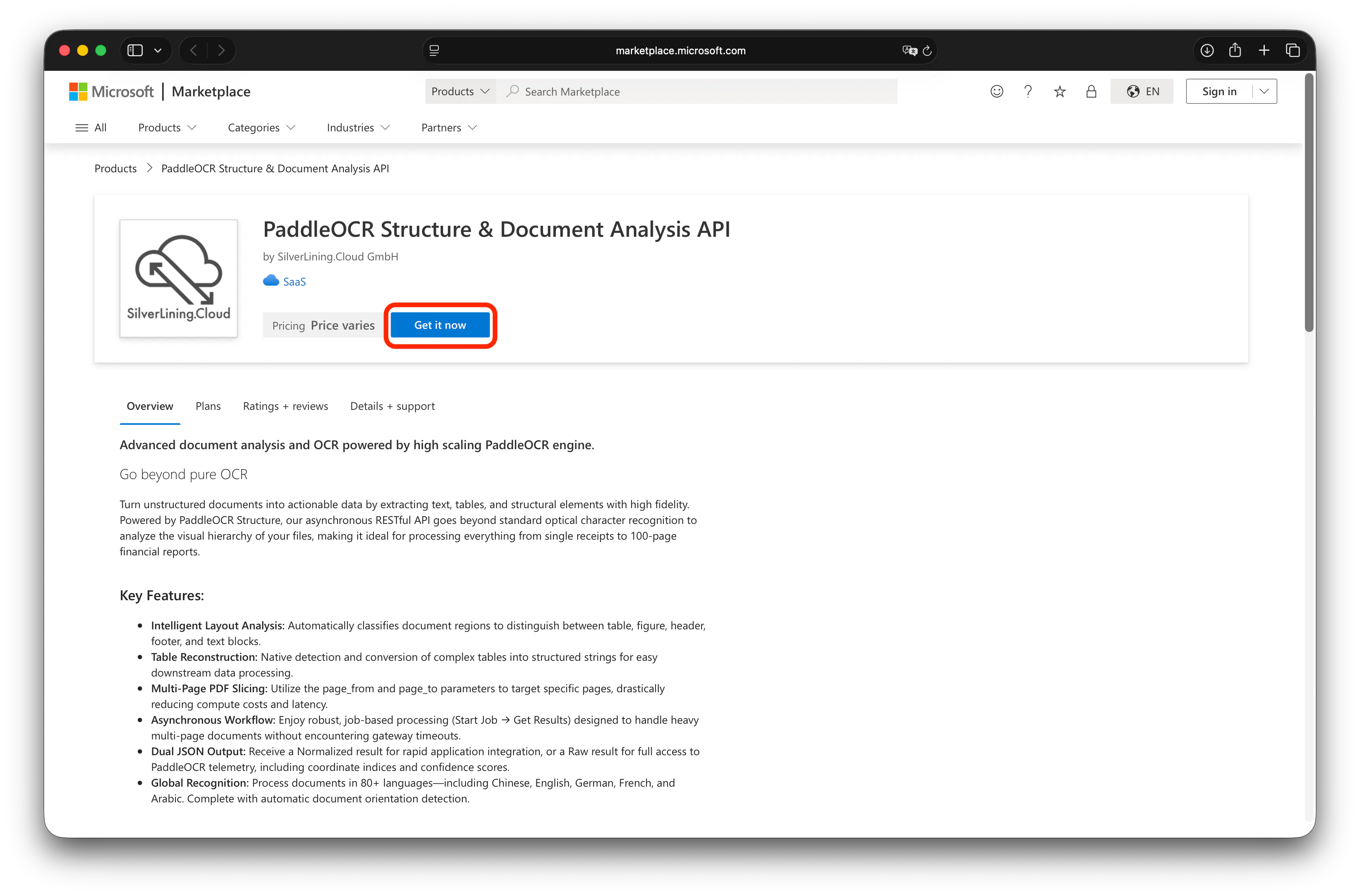
Visit our listings page on the Azure Marketplace and click on 'Get It Now'.
In the Azure portal, choose the Pay-Per-Scanned-Page plan and click on 'Subscribe'.
Select a resource group, give the subscription an internal name, and click on 'Review + subscribe'.
Click on 'Subscribe' to finalize your subscription.
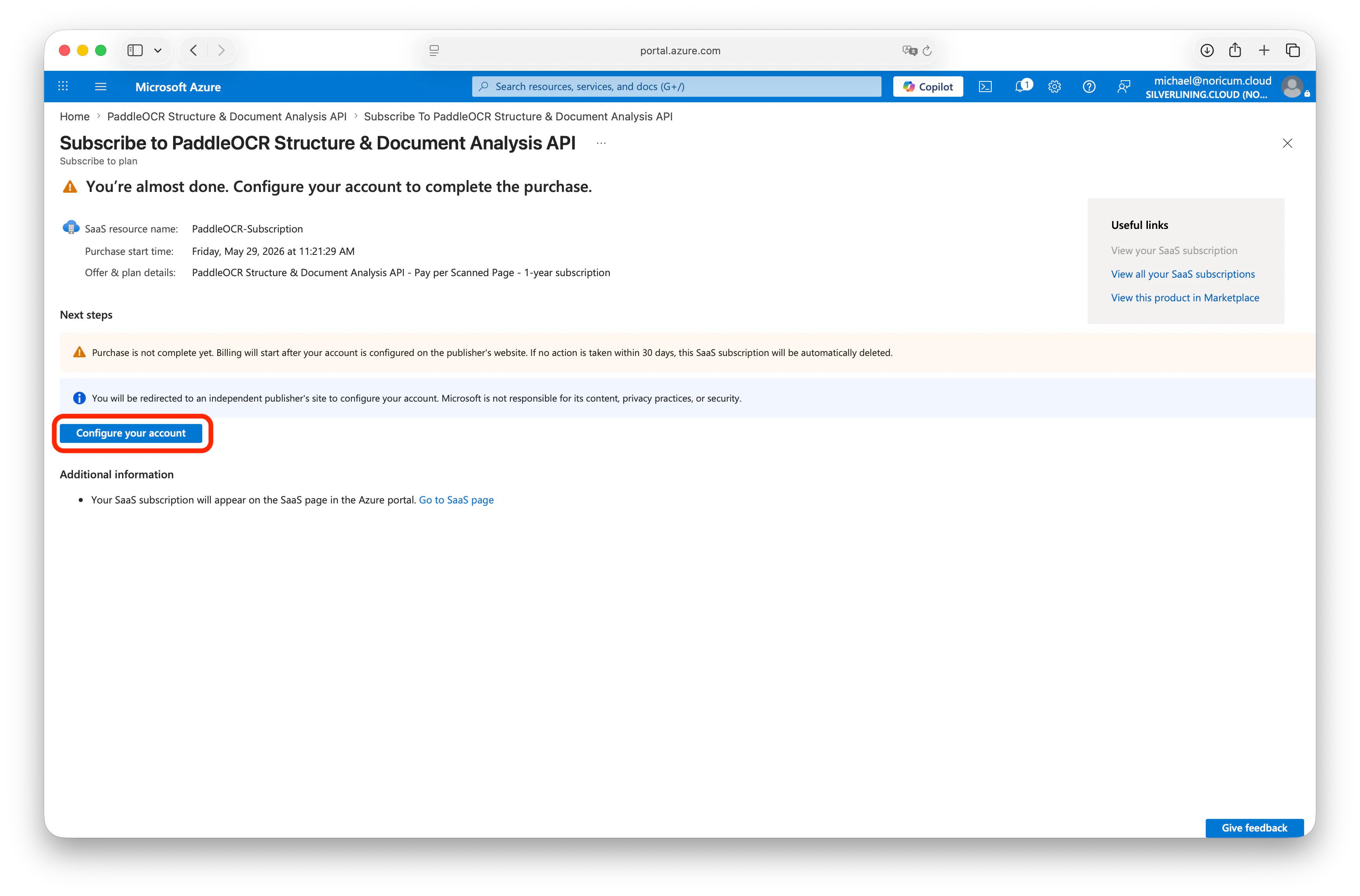
Begin creating your account on our platform by clicking on 'Configure account now'.
You will be directed to the registration page. Here, fill in your account details in the provided fields. After entering all necessary information, click on 'Subscribe' to proceed.
Upon successful registration, your unique API key will be displayed. It is crucial to store this key in a secure location for future use.
Code samples
The code samples below call the /ocr endpoint to extract text from a PDF document stored in an S3 bucket. It specifies English as the target language.
var client = new HttpClient();
var request = new HttpRequestMessage(HttpMethod.Post, "https://api-azr.silverlining.cloud/ocr/ocr");
request.Headers.Add("Ocp-Apim-Subscription-Key", "<YourApiKey>");
var content = new StringContent("{\n    \n    \"file_url\": \"https://cdn.silverlining.cloud/vivirse-case-study.pdf\",\n    \n    \"language\": \"en\"\n    \n    \n}", null, "application/json");
request.Content = content;
var response = await client.SendAsync(request);
response.EnsureSuccessStatusCode();
Console.WriteLine(await response.Content.ReadAsStringAsync());
API endpoint: /ocr/ocr
URL endpoint: https://api-azr.silverlining.cloud/ocr/ocr


Method: POST


"header": {
  "Ocp-Apim-Subscription-Key": STRING,
  "Content-Type": "application/json"
}


"body": {
  "file_url": STRING,
  "language": STRING,
  "detect_orientation": BOOLEAN,
  "webhook_url": STRING,
  "page_from": NUMBER,
  "page_to": NUMBER
}
Required
"file_url": The publicly accessible URL of the image (JPG, PNG) or PDF document you wish to process.
Optional
"language": The language code of the document (e.g., en, de, fr, ch) to ensure optimal recognition accuracy.
"detect_orientation": A boolean flag (true/false) that enables automatic detection and correction of rotated or upside-down documents before extraction.
"page_from": The starting page number (1-based) to begin text extraction from within a multi-page PDF document.
"page_to": The final page number (inclusive) to stop text extraction at within a multi-page PDF document.
"webhook_url": The two-letter ISO 3166-1 alpha-2 country code for the proxy server. Use this to make the request appear as if it's coming from a specific country, which is useful for accessing geo-restricted content. If this parameter is omitted, the request will be made from the US.
"page_from": An integer (1-indexed) specifying the first page of the PDF to begin processing; defaults to the start of the document if omitted.
"page_to": An integer (1-indexed) specifying the last page of the PDF to include in the OCR extraction; defaults to the final page of the document if omitted.
Response:
"status": The current lifecycle state of the request (e.g., started, completed, failed).
"ocr_results_url": The permanent Azure Blob link to the normalized JSON output (formatted for easy parsing).
"ocr_results_url_raw": The permanent Azure Blob link to the raw PaddleOCR output (includes all engine-level data).
"job_metadata": A reflection of your request parameters and the unique job identifier.
API endpoint: /ocr/get-results
URL endpoint: https://api-azr.silverlining.cloud/ocr/get-results


Method: POST


"header": {
  "Ocp-Apim-Subscription-Key": STRING,
  "Content-Type": "application/json"
}


"body": {
  "job_id": STRING
}
Required
"job_id": Unique, string-based identifier generated automatically when a document is first submitted to the OCR API. It serves as the primary key for tracking your document throughout the asynchronous processing pipeline.
Response:
"status": The current lifecycle state of the request (e.g., started, completed, failed).
"ocr_results_url": The permanent Azure Blob link to the normalized JSON output (formatted for easy parsing).
"ocr_results_url_raw": The permanent Azure Blob link to the raw PaddleOCR output (includes all engine-level data).
Troubleshooting
"message": "Invalid Input: The request contains incorrectly formatted parameters"
This error message means that the body parameters you have passed are malformed. Please follow the instructions given in the endpoint descriptions. Common issues include forgetting to add a comma (',') after every parameter line or missing a parenthesis somewhere.
How can I cancel my subscription?
To cancel your subscription, follow these steps:
- Go to the Azure Portal at https://portal.azure.com/#home
- Ensure that you are logged into the subscription associated with the product you want to cancel.
- Open Resource groups under Azure services, find the resource group where the subscription is nested, and select it.
- Click on the product you want to cancel.
- In the window that opens, select Cancel subscription.