
PaddleOCR Structure & Document Analysis API
Table of Content
Subscribe on AWS Marketplace
Code sample
API endpoint: /ocr
API endpoint: /get-results
Pricing
API Usage Dashboard & API Key Retrival
List of supported Languages
Troubleshooting
Subscribe on AWS Marketplace
Navigate to our product listing on the AWS Marketplace. Select the "View purchase options" button to proceed.
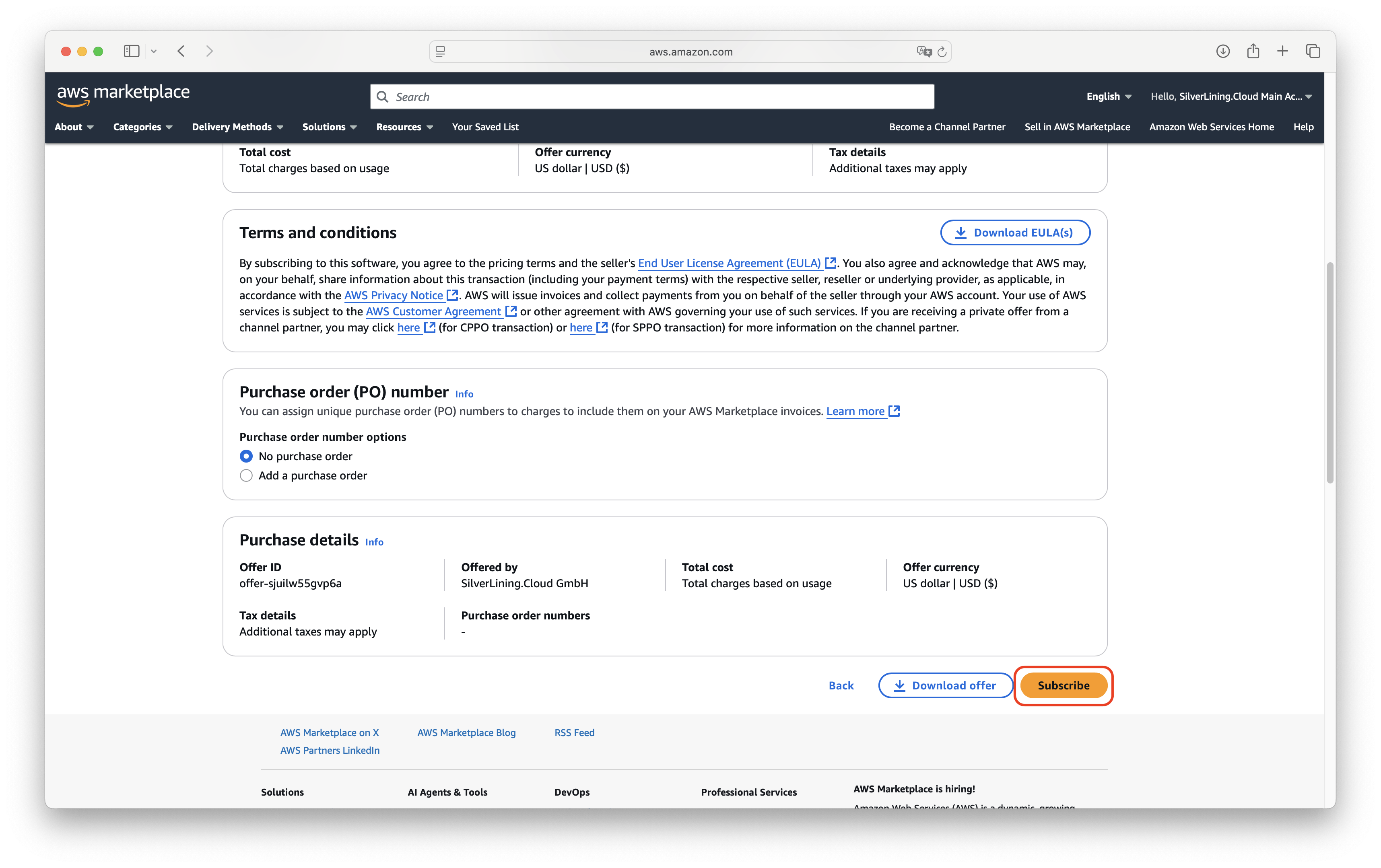
On the following page, click the "Subscribe" button to initiate the subscription process.
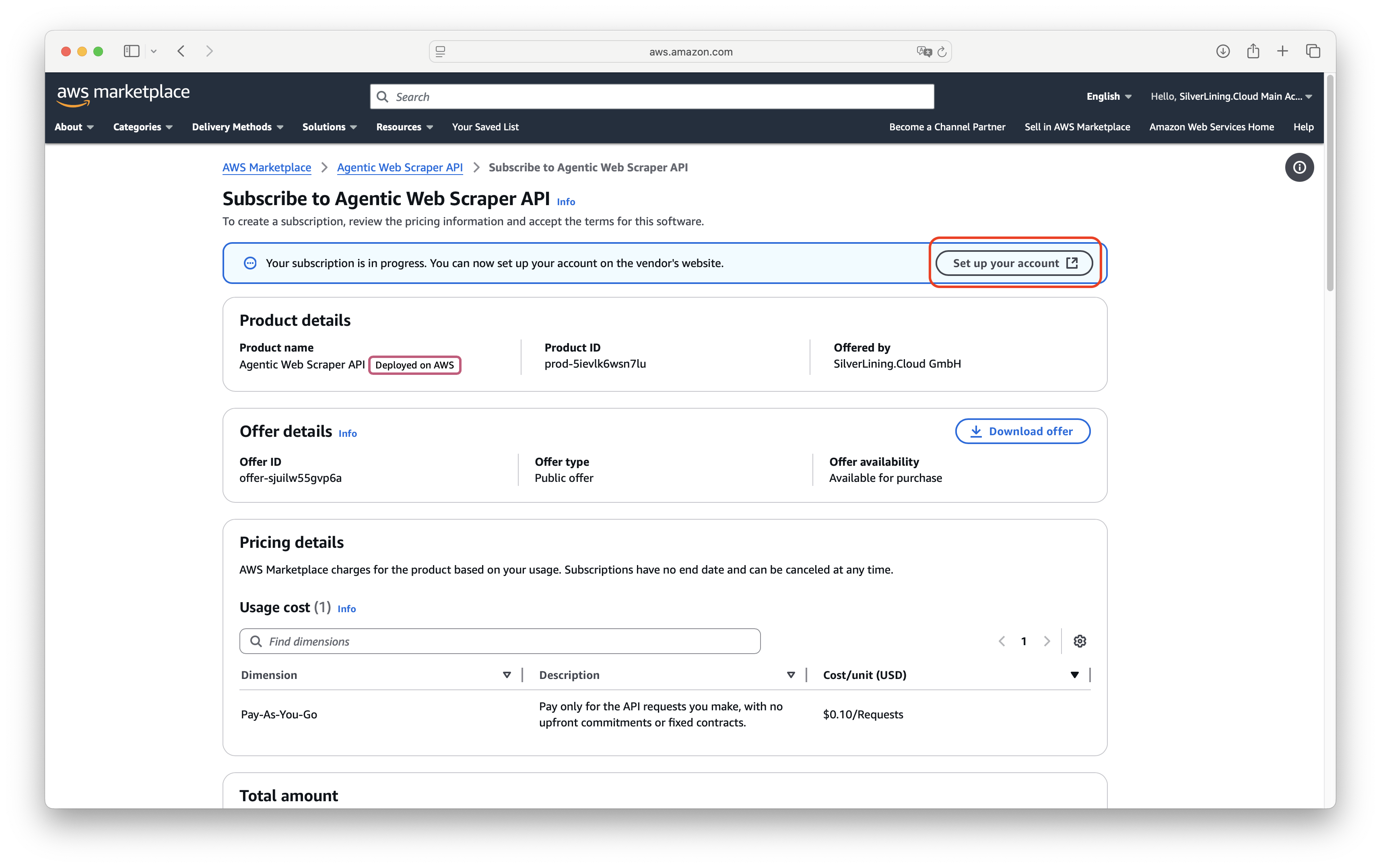
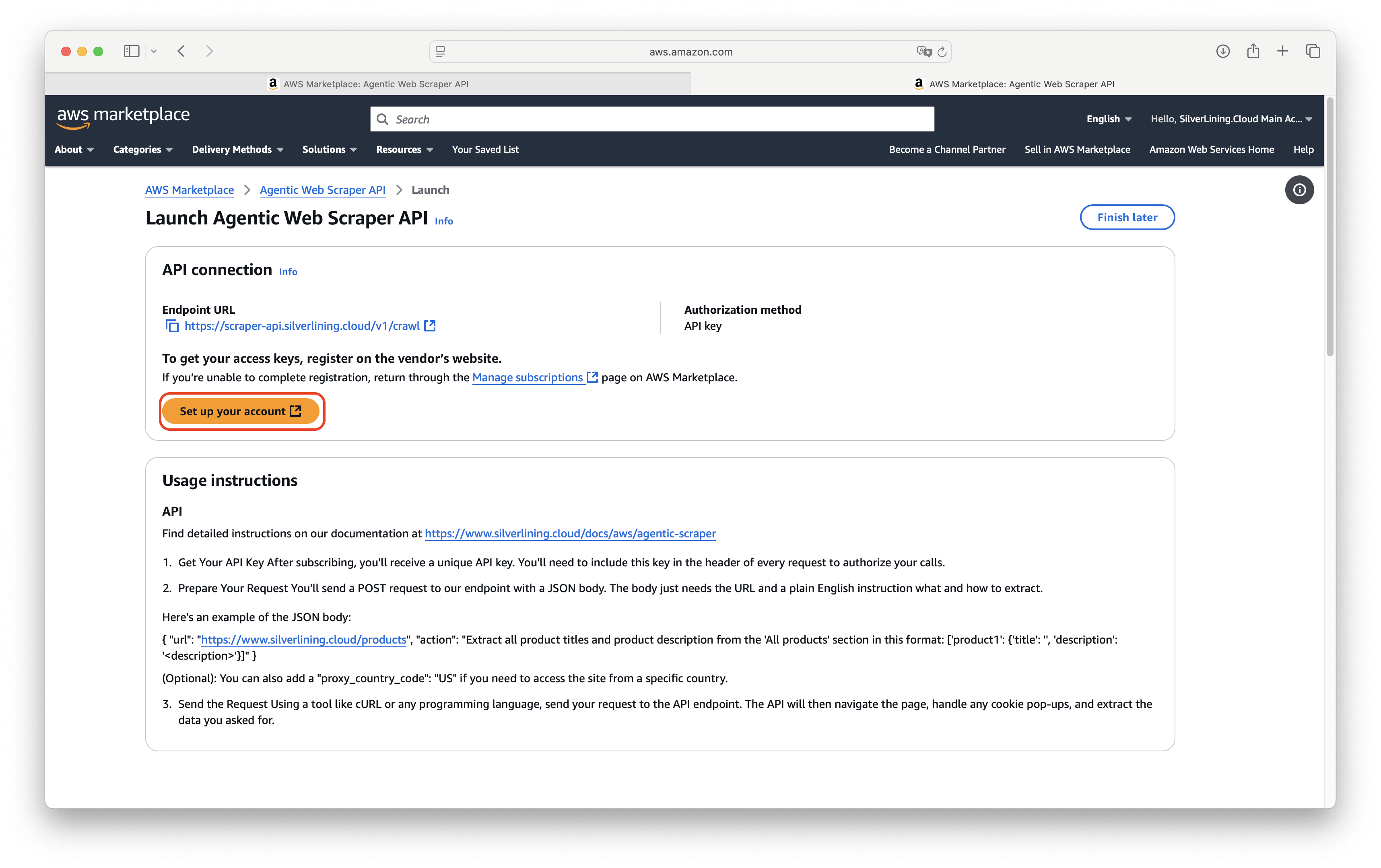
After subscribing, you will need to set up your account on our platform. Do this by clicking the "Set up your account" button twice.
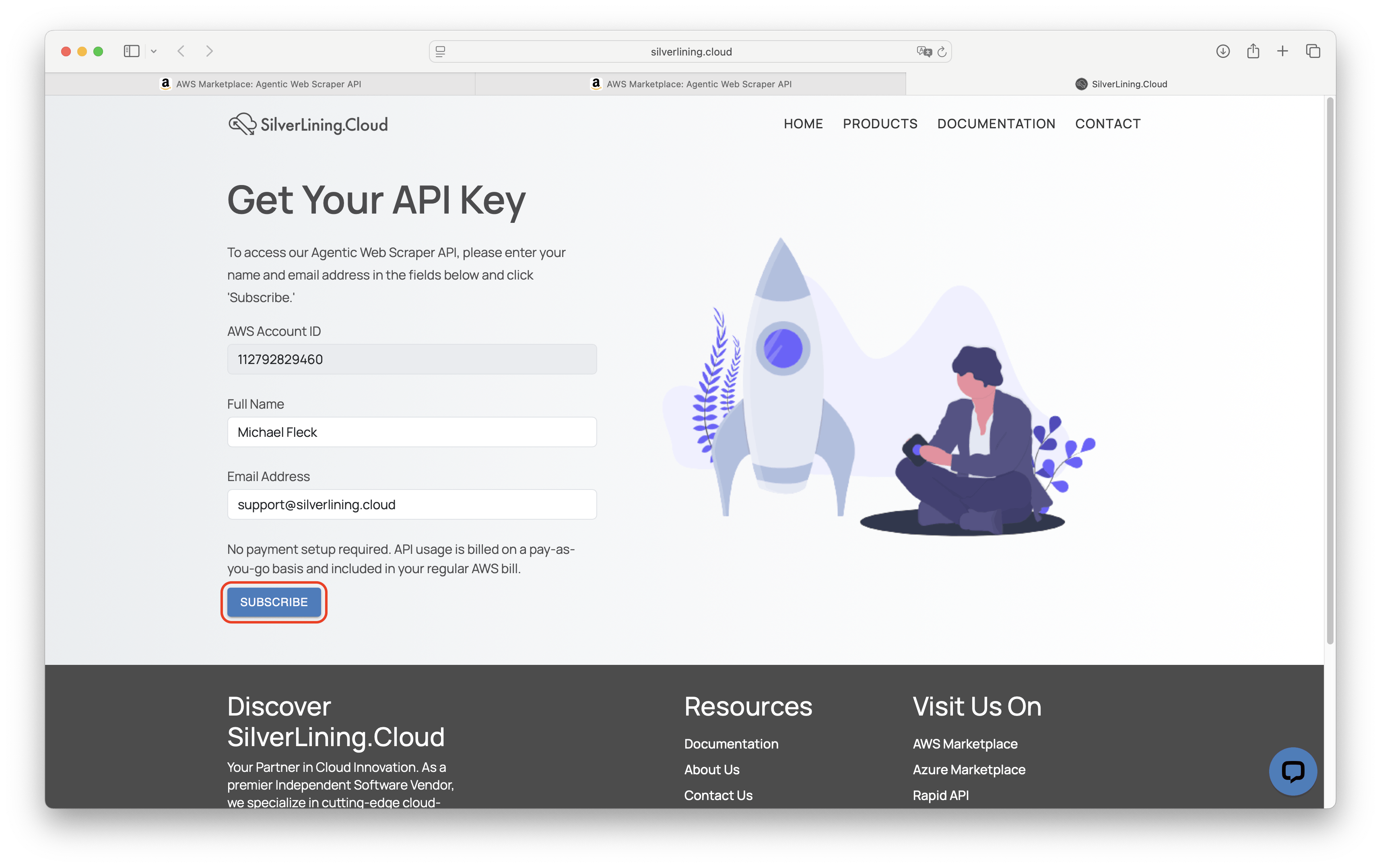
You will be directed to the registration page. Here, fill in your account details in the provided fields. Once you have entered all necessary information, click the 'Subscribe' button to proceed.
Upon successful registration, your unique API key will be displayed. It is crucial to store this key in a secure location for future use.
Code Samples
The code samples below call the /ocr endpoint to extract text from a PDF document stored in an S3 bucket. It specifies English as the target language.
var client = new HttpClient();
var request = new HttpRequestMessage(HttpMethod.Post, "https://aws-ocr.silverlining.cloud/ocr");
request.Headers.Add("x-api-key", "<YourApiKey>");
var content = new StringContent("{\n    \"file_url\": \"https://s3.us-east-1.amazonaws.com/cdn.silverlining.cloud/vivirse-case-study.pdf\",\n    \"language\": \"en\"\n}", null, "application/json");
request.Content = content;
var response = await client.SendAsync(request);
response.EnsureSuccessStatusCode();
Console.WriteLine(await response.Content.ReadAsStringAsync());
API Demo Playground
This API Playground for our OCR API allows you to test the service in real-time. Simply enter the file URL (Image or PDF) you want to analyze and optional parameters like the document language, and you’ll receive the extracted JSON response directly from the API. Whether you’re integrating document digitization into your application or just experimenting with the text recognition capabilities, the playground provides a user-friendly interface to see real-time results instantly.
"To see the result, please send a request to the API."
API endpoint: /ocr
URL endpoint: https://aws-ocr.silverlining.cloud/ocr


Method: POST


"header": {
  "x-api-key": STRING,
  "Content-Type": "application/json"
}


"body": {
  "file_url": STRING,
  "language": STRING,
  "detect_orientation": BOOLEAN,
  "webhook_url": STRING,
  "page_from": NUMBER,
  "page_to": NUMBER
}
Required
"file_url": The publicly accessible URL of the image (JPG, PNG) or PDF document you wish to process.
Optional
"language": The language code of the document (e.g., en, de, fr, ch) to ensure optimal recognition accuracy.
"detect_orientation": A boolean flag (true/false) that enables automatic detection and correction of rotated or upside-down documents before extraction.
"page_from": The starting page number (1-based) to begin text extraction from within a multi-page PDF document.
"page_to": The final page number (inclusive) to stop text extraction at within a multi-page PDF document.
"webhook_url": The two-letter ISO 3166-1 alpha-2 country code for the proxy server. Use this to make the request appear as if it's coming from a specific country, which is useful for accessing geo-restricted content. If this parameter is omitted, the request will be made from the US.
"page_from": An integer (1-indexed) specifying the first page of the PDF to begin processing; defaults to the start of the document if omitted.
"page_to": An integer (1-indexed) specifying the last page of the PDF to include in the OCR extraction; defaults to the final page of the document if omitted.
Response:
"status": The current lifecycle state of the request (e.g., started, completed, failed).
"ocr_results_url": The permanent Azure Blob link to the normalized JSON output (formatted for easy parsing).
"ocr_results_url_raw": The permanent Azure Blob link to the raw PaddleOCR output (includes all engine-level data).
"job_metadata": A reflection of your request parameters and the unique job identifier.
API endpoint: /get-results
URL endpoint: https://aws-ocr.silverlining.cloud/get-results


Method: POST


"header": {
  "x-api-key": STRING,
  "Content-Type": "application/json"
}


"body": {
  "job_id": STRING
}
Required
"job_id": Unique, string-based identifier generated automatically when a document is first submitted to the OCR API. It serves as the primary key for tracking your document throughout the asynchronous processing pipeline.
Response:
"status": The current lifecycle state of the request (e.g., started, completed, failed).
"ocr_results_url": The permanent Azure Blob link to the normalized JSON output (formatted for easy parsing).
"ocr_results_url_raw": The permanent Azure Blob link to the raw PaddleOCR output (includes all engine-level data).
Pricing
The service follows a pay-as-you-go model priced at $0.002 USD per page or image. For standard image files (JPG, PNG, BMP), each file is billed as a single unit. For PDF documents, billing is calculated based on the number of pages processed within your requested page_from and page_to range. This allows you to optimize costs by targeting only the specific pages you need. Billing is handled seamlessly through the AWS Marketplace, appearing directly on your monthly AWS statement with no upfront commitments.
API Usage Dashboard
You can monitor and review your API activity in the API Usage Dashboard at https://silverlining.cloud/dashboard. Simply log in with your email address, then verify access using the one-time password (OTP) sent to your inbox. The dashboard displays your latest 1,000 API requests directly in the browser for quick inspection. For full analytics, you can also download the complete request history as a CSV file. After clicking the download button, a secure download link will be sent to your email address.
Please note that only API requests starting from April 2025 are included.
If you need to change your account email address, contact our support team.
API Key Retrieval
If you’ve lost your API key, log in to the web dashboard (see above) and open the Settings tab. There, you’ll find all API keys for all services you’re subscribed to.
List of available Languages
The following language codes are available for the OCR API:
"ch" # Chinese
"chinese_cht" # Chinese Traditional
"en" # English
"fr" # French
"ar" # Arabic
"es" # Spanish
"pt" # Portuguese
"ru" # Russian
"german" # German
"korean" # Korean
"japan" # Japanese
"it" # Italian
"hi" # Hindi
"ug" # Uyghur
"fa" # Persian
"ur" # Urdu
"oc" # Occitan
"mr" # Marathi
"ne" # Nepali
"rs_cyrillic" # Serbian (Cyrillic)
"rs_latin" # Serbian (Latin)
"bg" # Bulgarian
"uk" # Ukrainian
"be" # Belarusian
"te" # Telugu
"kn" # Kannada
"ta" # Tamil
"mg" # Mongolian
"ku_cent" # Kurdish Central
"od" # Odia
"th" # Thai
Troubleshooting
"message": "Invalid Input: The request contains incorrectly formatted parameters"
This error message means that the body parameters you have passed are malformed. Please follow the instructions given in the endpoint descriptions. Common issues include forgetting to add a comma (',') after every parameter line or missing a parenthesis somewhere.
"message": "Endpoint request timed out"
You receive this error message when the code execution exceeds the maximum timeout of 170 seconds. Try to extract data from a smaller web page.
How can I see my API usage and associated costs?
Navigate to our API Usage Dashboard to view past API requests. There, you can download a CSV export of all requests made.
To check the associated costs of your API usage, use the AWS Billing dashboard:
- Navigate to AWS Cost Management.
- In the left panel, select Cost Explorer.
- Use the cost filters on the right side. Under Legal entity, filter for SilverLining.Cloud.
How can I cancel my subscription?
To cancel your subscription, follow these steps:
- Go to the AWS Marketplace Console at https://aws.amazon.com/marketplace/library. Ensure that you are logged into the account that is subscribed to the product you want to cancel.
- Find the product you want to cancel and click on 'Manage.'
- Click on 'Actions' and then select 'Cancel subscription.'
For more detailed instructions, visit the AWS Marketplace Buyer Guide at https://docs.aws.amazon.com/marketplace/latest/buyerguide/cancel-subscription.html.