
Adding Browser Frames to Your Screenshots
Published on 18.03.2026
When you take a screenshot of a website using automation tools like Playwright or Selenium, the engine gives you exactly what is in the viewport: the website content itself.
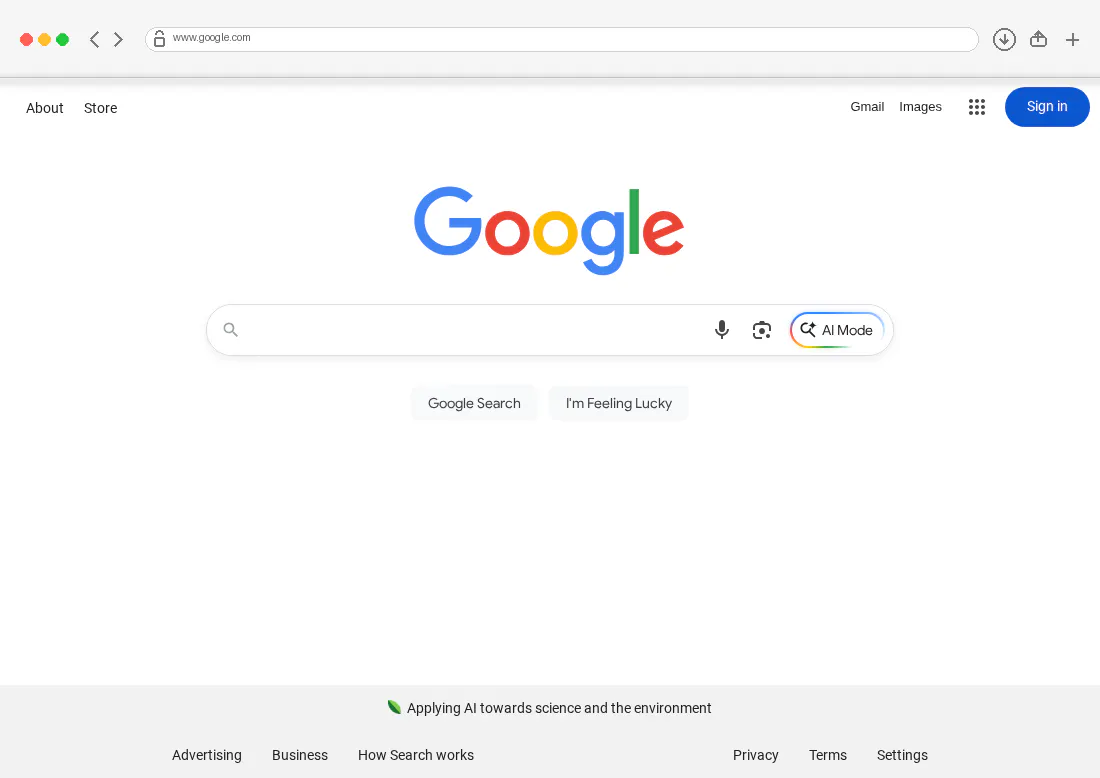
However, many of our users want their screenshots to look "real." Whether it is for a landing page, a presentation, or a portfolio, a screenshot often looks better when it is wrapped in a browser window with buttons, a URL bar, and rounded corners.
The Challenge: There is no "Include Browser" flag
Because Playwright interacts directly with the browser engine, there is no simple setting to "capture the Chrome window." To solve this, I decided to build a custom "wrapper" using Python and the Pillow (PIL) library.
Instead of just saving the raw image, our API now:
- Calculates the new dimensions needed for a header.
- Creates a "canvas" with rounded top corners.
- Draws the classic Safari-style interface (the "traffic light" buttons, URL bar, and icons) using code.
- Pastes your website screenshot directly into that frame.
The Code Behind the Frame
Below is the logic we use to "fake" the browser interface. We use ImageDraw to manually render the buttons and the URL field.
# --- helper functions ---
def prettify_url(url: str) -> str:
    for prefix in ("https://", "http://"):
        if url.startswith(prefix):
            url = url[len(prefix):]
            break
    return url.rstrip("/")


def add_safari_frame(input_path, output_path, url):
    screenshot = Image.open(input_path).convert("RGB")
    width, height = screenshot.size

    topbar_height = 78
    corner_radius = 16

    outer_bg = (242, 242, 242)
    toolbar_bg = (246, 246, 246)
    border = (210, 210, 210)
    url_bg = (255, 255, 255)
    text_color = (95, 95, 95)
    icon_color = (120, 120, 120)

    total_height = height + topbar_height
    canvas = Image.new("RGBA", (width, total_height), (0, 0, 0, 0))

    # Main browser body with rounded top corners
    browser_layer = Image.new("RGBA", (width, total_height), (0, 0, 0, 0))
    browser_draw = ImageDraw.Draw(browser_layer)

    browser_draw.rounded_rectangle(
        (0, 0, width - 1, total_height - 1),
        radius=corner_radius,
        fill=outer_bg + (255,),
        outline=None
    )

    # Toolbar clipped into rounded outer shape
    browser_draw.rectangle((0, 0, width, topbar_height), fill=toolbar_bg + (255,))
    browser_draw.line((0, topbar_height - 1, width, topbar_height - 1), fill=border + (255,), width=1)

    # Paste screenshot below toolbar
    browser_layer.paste(screenshot.convert("RGBA"), (0, topbar_height))

    # Shadow under toolbar
    shadow_layer = Image.new("RGBA", (width, total_height), (0, 0, 0, 0))
    shadow_draw = ImageDraw.Draw(shadow_layer)
    shadow_y = topbar_height - 1
    shadow_draw.rectangle((0, shadow_y, width, shadow_y + 6), fill=(0, 0, 0, 35))
    shadow_layer = shadow_layer.filter(ImageFilter.GaussianBlur(radius=4))

    canvas.alpha_composite(browser_layer)
    canvas.alpha_composite(shadow_layer)

    draw = ImageDraw.Draw(canvas)

    def draw_chevron(x, y, direction="left", size=8, color=(120, 120, 120), width_line=2):
        if direction == "left":
            draw.line((x + size, y - size, x, y), fill=color, width=width_line)
            draw.line((x, y, x + size, y + size), fill=color, width=width_line)
        else:
            draw.line((x, y - size, x + size, y), fill=color, width=width_line)
            draw.line((x + size, y, x, y + size), fill=color, width=width_line)

    def draw_plus(x, y, size=7, color=(120, 120, 120), width_line=2):
        draw.line((x - size, y, x + size, y), fill=color, width=width_line)
        draw.line((x, y - size, x, y + size), fill=color, width=width_line)

    def draw_share_icon(x, y, w=16, h=14, color=(120, 120, 120), width_line=2):
        draw.rounded_rectangle(
            (x - w // 2, y - h // 2 + 4, x + w // 2, y + h // 2),
            radius=3,
            outline=color,
            width=width_line
        )
        draw.line((x, y + 2, x, y - 8), fill=color, width=width_line)
        draw.line((x, y - 8, x - 4, y - 4), fill=color, width=width_line)
        draw.line((x, y - 8, x + 4, y - 4), fill=color, width=width_line)

    def draw_download_icon_safari(x, y, color=(120, 120, 120), width_line=2):
        r = 11
        draw.ellipse((x - r, y - r, x + r, y + r), outline=color, width=width_line)
        draw.line((x, y - 5, x, y + 4), fill=color, width=width_line)
        draw.line((x, y + 4, x - 4, y), fill=color, width=width_line)
        draw.line((x, y + 4, x + 4, y), fill=color, width=width_line)

    def fit_text(text, font, max_width):
        if draw.textlength(text, font=font) <= max_width:
            return text
        ellipsis = "..."
        low, high = 0, len(text)
        while low < high:
            mid = (low + high) // 2
            candidate = text[:mid].rstrip() + ellipsis
            if draw.textlength(candidate, font=font) <= max_width:
                low = mid + 1
            else:
                high = mid
        return text[:max(0, low - 1)].rstrip() + ellipsis

    # Fonts
    try:
        font = ImageFont.truetype("/System/Library/Fonts/Supplemental/Arial.ttf", 16)
    except:
        try:
            font = ImageFont.truetype("DejaVuSans.ttf", 24)
        except:
            font = ImageFont.load_default()

    cy = 39

    # --- left traffic lights ---
    dot_r = 6
    dot_x = 20
    dot_y = cy - dot_r
    colors = [(255, 95, 86), (255, 189, 46), (39, 201, 63)]
    for i, c in enumerate(colors):
        x = dot_x + i * 18
        draw.ellipse((x, dot_y, x + 2 * dot_r, dot_y + 2 * dot_r), fill=c)

    # More spacing after traffic lights
    nav_start_x = 90
    draw_chevron(nav_start_x, cy, "left", size=7, color=icon_color, width_line=2)
    draw_chevron(nav_start_x + 24, cy, "right", size=7, color=icon_color, width_line=2)

    # --- right icons ---
    # order: download, share, plus
    right_margin = 22
    icon_gap = 34

    x_plus = width - right_margin - 6
    x_share = x_plus - icon_gap
    x_download = x_share - icon_gap

    draw_download_icon_safari(x_download, cy, color=icon_color, width_line=2)
    draw_share_icon(x_share, cy, color=icon_color, width_line=2)
    draw_plus(x_plus, cy, size=6, color=icon_color, width_line=2)

    # --- URL field ---
    url_left = 145
    url_right = x_download - 26
    url_top = cy - 12
    url_bottom = cy + 12

    draw.rounded_rectangle(
        (url_left, url_top, url_right, url_bottom),
        radius=12,
        fill=url_bg,
        outline=border,
        width=1
    )

    # Lock icon
    lock_x = url_left + 14
    lock_y = cy
    draw.arc((lock_x - 4, lock_y - 9, lock_x + 4, lock_y - 1), start=180, end=360, fill=icon_color, width=2)
    draw.rounded_rectangle((lock_x - 5, lock_y - 2, lock_x + 5, lock_y + 7), radius=2, outline=icon_color, width=2)

    # URL text
    shown_url = fit_text(prettify_url(url), font, url_right - (lock_x + 14) - 12)
    draw.text((lock_x + 14, cy - 8), shown_url, fill=text_color, font=font)

    # Final save as RGB
    canvas.convert("RGB").save(output_path, quality=95)
Why do it this way?
By drawing the interface with code rather than using a static background image, the browser frame stays perfectly crisp regardless of the screenshot resolution. Whether you are taking a 1280px or 4K screenshot, the buttons and URL text will always be pixel-perfect.
Get started with our Website Screenshot API on AWS or Azure Marketplace:
👉 AWS users: aws3.link/WebsiteScreenshotAPI
👉 Azure users: azr.link/WebsiteScreenshotAPI